For over 40 years, we have helped thousands of businesses with their IT solutions for lasting success. We provide personalized IT solutions tailored to your diverse business needs.

Contacts

Minneapolis, MN

(952) 715-3600

San Diego, CA

619-853-3744

Hollywood, CA

323-435-1318

Sacramento, CA

916-352-8792

Boise, ID

1-800-381-9383

Rio Rancho, NM

505-219-1694

Tulsa, OK

(918) 508-2228

Conway, AR

501-329-1238

Harvey, LA

504-502-1550

Chicago, IL

312-284-3219

Grand Rapids, MI

616-727-8260

Vernon, OH

740-638-0883

Frederick, MD

301-867-7128

Reston, VA

757-982-8986

Fairfield, NJ

973-604-0655

Fargo, ND

701-354-2979

Iowa

1-800-830-0112

Kansas

913-382-2823

Florida

561-693-1382

Coffee Break Reads
fake apps

How to Spot Fake Apps (10 Warning Signs You Should Know)

You’re halfway through your morning latte, and your teen suddenly asks, Can I download this new app? You glance at their screen, which looks familiar, but something feels off. Fake apps today are so cleverly disguised that even adults get tricked. The problem? These apps don’t just waste storage; they can steal data, track activity, or sneak in malware.  Now, don’t panic. You don’t need to become a cybersecurity wizard to keep your kids safe. In the time it takes to finish your cappuccino, you can learn how to spot these impostors and save yourself from a lot of digital drama.  Why This Coffee Break Read Matters?  This isn’t about turning you into a cybersecurity expert. It’s about giving you a quick, practical checklist you can use right after you finish your cup of coffee. Three to five minutes of reading today could save you and your teen from hours of headache tomorrow.  How to Spot Fake Apps Before Your Teen Hits Download  1. Check the Developer’s Name  Think of the developer as the app’s signature. A real app will always be published by the official company. Fake ones often try to mimic the name but slip in tiny differences, like extra characters, unusual spellings, or numbers replacing letters.  2. Don’t Trust All Reviews, Read the Right Ones  Scammers know reviews matter, so they buy fake 5-star ratings. But the trick is in the 1-star section. That’s where frustrated users spill the truth.  3. Look at Download Numbers  Big apps attract big numbers. If your teen is installing something that claims to be WhatsApp but only shows 5,000 downloads, something’s fishy. The bigger the brand, the higher the download count should be, usually in the millions.  4. Check App Permissions  Here’s a simple trick. Ask yourself: Does this app really need what it’s asking for?  5. Scrutinize Logos and Screenshots  Scammers copy logos, but they rarely get it perfect. Colors may look a bit off, or the font may feel stretched. Screenshots can be blurry too, sometimes with odd spelling that gives it away. Best move? Check the company’s real website and compare side by side. If you see even small differences, better avoid the app.  6. Watch Out for Bad Grammar  It sounds simple, but this is one of the easiest giveaways. Legitimate companies hire professionals to write their app descriptions. Scammers? Not so much.  7. Stick With Official Stores Only  Sometimes, teens get links from friends or social media to special versions of apps. That’s usually trouble. Always download apps directly from the Apple App Store or Google Play Store. Even in official stores, fakes sneak in. Always double-check the developer before clicking install.  Extra Coffee Tips   Wrapping It Up  So here’s the simple truth. Fake apps try to copy the real ones. But they always slip somewhere. Wrong spelling, odd logos, weird permissions, low downloads. Sometimes it’s small, but once you see it, it’s clear.  It’s not about being paranoid. It’s just about being smart. A short check today saves hours of fixing tomorrow. And after a while, the check feels normal, like habits we don’t even think about. Locking the door before bed. Or sipping coffee in the morning without pause.  Your Turn  Now we’re curious, which trick do you think is the most effective? Do you already use one of these, or did something new catch your eye today? Hit reply and let us know. We might feature your answer in our next Coffee Break Reads edition.  Until then, enjoy your coffee, keep those apps clean, and stay one step ahead of the scammers. 

Coffee Break Reads
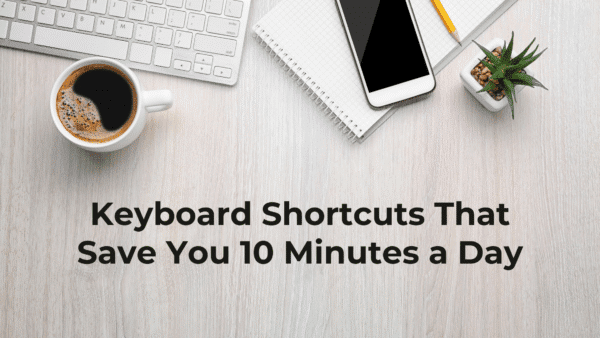
Coffee, keyboard, phone, notebook, and plant arrangement.

Keyboard Shortcuts That Save You 10 Minutes a Day

We all spend hours each week clicking, dragging, and hunting for the right button on our computers. It’s not that we don’t know better; we just fall into habits. But here’s the secret: a handful of simple keyboard shortcuts can shave off precious minutes each day and save you from a lot of small frustrations. Think of this as your 3–5 minute productivity boost before your coffee gets cold. By the end of this read, you’ll have a few shortcuts ready to test drive today. Why Shortcuts Matter Keyboard shortcuts are like the fast track on a busy road. You can drive the long way if you want, but once you try the shortcut, you’ll ask yourself why you never used it before. Just a few keys, that’s it. Use them every day, and the minutes stack up. Weeks later, it feels like hours back in your pocket. So, before your coffee goes cold, here are some quick wins you can try right now. Everyday Essentials Copy & Paste Like a Pro The classics. They’re the bread and butter of shortcuts. Instead of right-clicking, selecting “Copy,” and then “Paste,” just tap these and you’re done. Undo Oops Accidentally deleted half a sentence or moved a file? No need to panic. This command is your instant safety net, like having a rewind button for your mistakes. Redo That Fix We all overdo the undo. This brings things right back without retyping or reformatting. Navigation Made Easy (Switch Between Apps) Perfect when you’re juggling email, spreadsheets, and a browser window all at once. Find Anything Fast Scrolling endlessly to locate one phrase in a document is a mood killer. With this shortcut, just type the word, and it lights up instantly. Snap Windows Side by Side Research on one side, notes on the other. Or chat on one side, report on the other. Multitasking suddenly feels effortless. Minimize Everything at Once This shortcut drops all windows and takes you to your desktop. Handy when clutter builds up. Speed Boost for Text (Select All in One Go) Instead of dragging your cursor across pages of text, just highlight everything in a blink. Perfect for emails, Word docs, or even spreadsheets. Cut It Out Think of this as “copy and delete.” Move text, files, or even entire folders without leaving duplicates behind. Bold, Italic, Underline Dress up your words instantly. If you format text often, this keeps your hands on the keyboard and away from clunky toolbars. Jump to Start or End Skip scrolling. Land at the top or bottom of a document instantly. It’s like teleporting through pages. Screenshots on the Fly (Quick Snip) Instead of cluttering your desktop with full screenshots, highlight only the exact area you need to see. Whole Screen Shot Capture the entire view with one click. Great for saving confirmation pages or error messages before they disappear. Power User Extras (Lock Your Screen) This locks your screen instantly. A must if you’re in an office or working around others. Open New Tab Instantly This shortcut pops open a fresh tab instantly, ready for your next search. Reopen a Closed Tab Closed a tab by accident? Don’t panic. This shortcut is the browser equivalent of time travel. Wrap-Up Tip No need to learn every shortcut today. Start small. Just pick two or three that fit how you usually work, like jumping between apps, copying stuff, or snapping windows side by side. Use them every day, and soon your fingers just do it without thinking. And then you notice it. Things that felt slow don’t feel slow anymore. The work moves smoothly. And those few minutes you save? That’s time for coffee, a stretch, or maybe even finishing a bit earlier. Your Turn So, which shortcut do you use most often? Or maybe you have a hidden gem we didn’t cover? We’d love to hear from you. Just hit reply and share it. Who knows, we might drop it in the next Coffee Break Reads. Till then, finish your coffee. And enjoy those few minutes you just got back.

  • 1
  • 2

Downloading...

Please wait while the PDF downloads