

In short
Save time and find files faster with 5 practical file organization tips, smarter naming habits, better search, and simple maintenance routines.
In this article
Ever needed a file right away, then somehow spent the next ten or fifteen minutes looking for it? You check one folder, then another. Open an old email. Search your desktop. Still nothing. It happens more often than most of us like to admit.
And most times, it isn’t really a software problem. It’s just the way files slowly pile up when we’re busy. A few small habits can fix a lot of that. So while your coffee is still warm, here’s a quick read with five ideas you can put to use today.
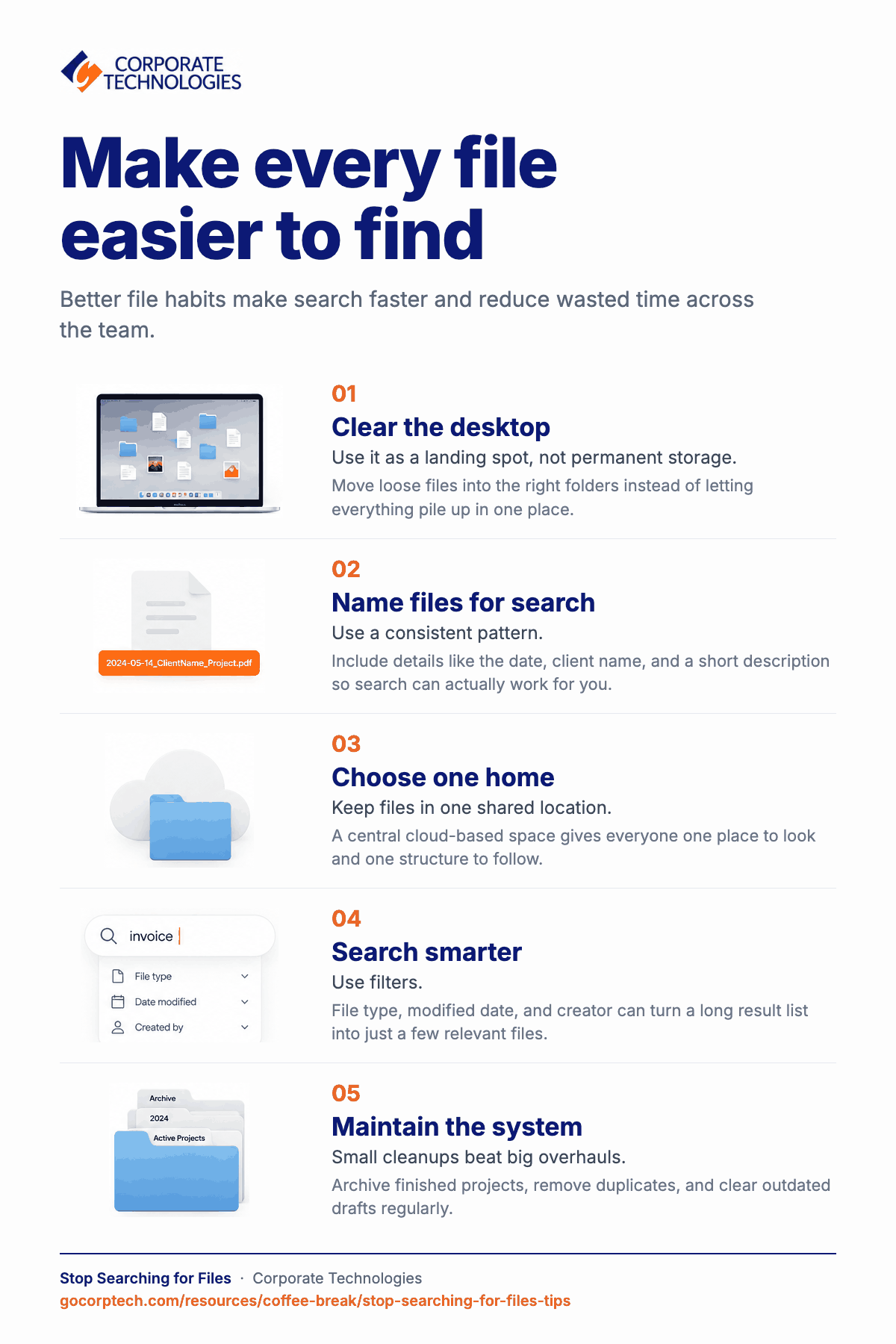
1. Stop Treating Your Desktop like Permanent Storage
Somewhere along the way, the desktop turned into the place everything goes when you don’t have time to deal with it. Screenshots. Downloads. That PDF you meant to move “later” and never did. Before you know it, you’ve got two hundred icons and one tiny sliver of wallpaper still showing through.
The desktop’s fine as a landing spot. It’s not fine as a permanent home for stuff. And here’s the part people miss: when everything lives there, nothing’s actually organized. It’s just visible. Big difference.
2. Give Files Names that Search Can Actually Work With
Most of us don’t think much before saving a file. We type something like Final, Final2, or maybe Final_ReallyFinal, then move on. It works for the day. A few weeks or months later, not really. You end up opening three or four files before finding the right one, and that gets annoying pretty quickly.
A simple naming habit fixes most of this. Add the date, the client name, then a short description. Whatever pattern works for your team is fine. It doesn’t have to be perfect. Just stick with it. Search gets way faster once you do.
3. Pick One Home for Your Files, Not Five
Files scatter: that’s just what they do. Some live on the desktop, some sit in an email attachment, some are on a USB drive from three laptops ago, and some are in a cloud folder nobody else even knows exists. Then when you actually need one, you ain’t sure which of the five places to check first.
Think of it kind of like a kitchen. Nobody keeps groceries spread across five different rooms of the house. Everything goes in one kitchen so everyone knows where to look. Files work the same. One shared, cloud-based spot everyone on the team can get into. That doesn’t mean you lose structure inside it. It just means the structure finally has one place to actually live.
4. Make Better Use Of Search
Most people use search at the most basic level. Type a word, hope for the best. But the filters sitting right there–file type, date modified, who created it-can turn a hundred results into three.
Searching “invoice” gets you every invoice you ever touched, all of them. Filtering by client name and last month’s date gets you the one you actually need. It’s maybe a five-minute thing to learn, and it pays off every time you search after.
5. A Little Maintenance Prevents A Big Mess
Folders need upkeep, same as a junk drawer does. It only stays useful if someone empties it out once in a while. Archive the projects that wrapped up. Delete the duplicate copies lying around. Clear out the drafts nobody’s opening again.
You don’t need a big cleanup day for this. A small, regular pass beats a massive overhaul you keep putting off anyway.
Your 10-Minute File Reset
Next time you have a few spare minutes, give this a shot:
- Rename this week’s files using one consistent format
- Move anything loose off your desktop into the right folder
- Settle on one central, shared spot for team files going forward
- Delete or archive anything clearly outdated
- Try a search filter you never used before
- Set a recurring reminder to do this again next quarter
None of this has to be perfect. You just need a system your search bar can actually work with.
Why These Small Habits Matter
A few minutes spent looking for one file doesn’t seem like much. But across a team, those minutes add up. People wait for documents. Work slows down. Sometimes the wrong version gets shared, which creates even more work.
Keeping files organized also makes it easier to protect important information. Everyone knows where things belong, and that’s good for productivity as well as security.
One Last Thought
A little structure buys back more time than you’d think. Pick one folder. Spend one coffee break on it. Set it up right and you probably won’t have to do it again.
What’s one file you always seem to search for more than you should?
Keep reading
More in Coffee Break Reads →
Multitasking Is Slowing You Down (And Increasing Risk)
Multitasking feels productive, but your brain is switching gears and paying for it in lost time, more mistakes and more stress. Here…

What Happens When You Click “Remind Me Later” Too Many Times
That little "Remind me later" button feels harmless. But a hundred clicks later, your devices are out of sync and the security…

Your Browser Knows More About You Than You Think
Your browser knows more about you than you think. Discover how browsing habits shape your online experience and ads.
Free, same business day
What would managed IT cost for your team?
Tell us how many computers and users you have. An engineer sends a per-user range, usually the same business day. No credit card, no bot.
- Live service specialist in about a minute, 24/7
- 21 offices across 18 states
- 60-day money-back guarantee
Get your instant IT support estimate
Tell us how many computers and users you have and we send a per-user range, usually the same business day.