

In short
Your browser knows more about you than you think. Discover how browsing habits shape your online experience and ads.
In this article
- Your browser remembers way more than you’d think
- Those cookie pop-ups aren’t as boring as they look
- Your device leaves little clues too
- Private browsing isn’t really invisible
- That extension you installed once and forgot about
- Give it ten minutes, that’s all
- This matters more at work than people think
- One last thing before you finish your coffee
So, here’s something that happens to basically everyone. You search for a pair of running shoes on Monday. By Wednesday, those same shoes are following you around. Ads on news sites, ads on apps you barely use, even on things that have nothing to do with shoes.
Your browser knows quite a bit. That’s not spying; it’s simply how today’s web works. Some of it helps. Some of it’s just there for convenience. Still, worth knowing what gets remembered.
So grab your coffee. This one will only take a few minutes.
Your browser remembers way more than you’d think
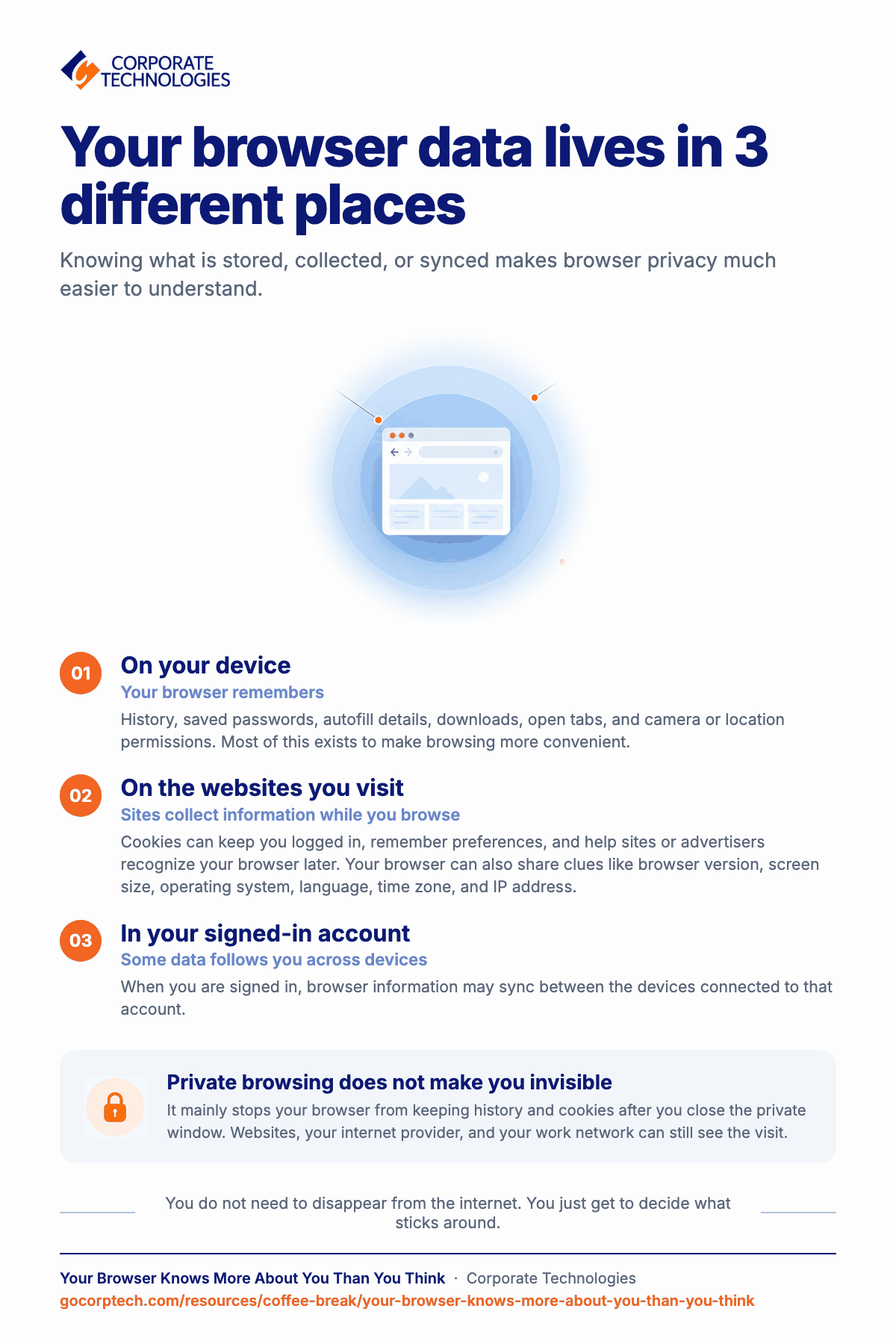
Open your browser settings sometime. You might be surprised by how much is sitting there. Browsing history. Saved passwords. Autofill details. Downloads. Even tabs you forgot about months ago. Then there’s camera or location access you clicked “Allow” on and never looked at again. (If your tab count alone is out of control, our take on too many browser tabs is worth a read too.)
Most of it is for convenience. Nobody enjoys entering the same details again and again.
Just remember, these are different things:
- Your browser stores things on your device.
- Websites collect some information while you visit them.
- Your signed-in account may sync data across your devices.
Knowing the difference makes all this a lot less confusing.
Those cookie pop-ups aren’t as boring as they look
Be honest, when that cookie banner shows up, nobody reads it. We hit “Accept All” and keep scrolling. Faster that way. We’ve all done it, probably a hundred times.
Cookies do have a job though. Some keep you logged in. Some remember your cart, or your language setting. Those are actually helpful. Others do a bit more. They help sites and advertisers recognize your browser, so that thing you looked at yesterday shows up again while reading the news today.
Cookies aren’t bad by default. The real problem is most people have no clue how many they’ve said yes to, or what they even agreed to. Curious where all of this is headed? We dug into that in the future of online privacy.
Your device leaves little clues too
Even if cookies are limited, your browser still shares little clues. Things like your browser version. Screen size. Operating system. Language. Time zone. IP address.
None of it means much alone. But put together, your device starts to stand out. Kind of like spotting a coworker across the parking lot. Maybe it’s how they walk, or that backpack they always carry. One thing alone doesn’t say much. All of it together usually does.
Private browsing isn’t really invisible
Private browsing gets misunderstood all the time. It isn’t some invisible mode. It mostly stops your browser from saving history and cookies after you close the window.
That’s about it. Websites can still see your visit. Your internet provider or work network can too. Think of it like cleaning a whiteboard after the meeting. The writing is gone later, but everyone already saw what was on it.
That extension you installed once and forgot about
We’ve all done this. Installed some extension for a coupon, or a screenshot tool, or converting a file, used it twice, then completely forgot it exists.
Except it didn’t forget about you. A lot of extensions can still read or even change what’s on the pages you visit. Add in permissions for your camera, mic, location, clipboard, and there’s honestly a lot sitting quietly in the background that most people never check again. It’s a similar idea to knowing how to spot a fake app before you install it in the first place.
Not every extension is a problem; don’t panic. But looking through them once in a while genuinely helps, and it’s worth pairing with a quick check on whether your webcam is actually on when you’re not using it.
Give it ten minutes, that’s all
- Delete extensions you don’t recognize or don’t use anymore
- Check which sites still have access to your camera, mic, or location
- Look over your saved passwords and autofill settings, and make sure they still meet what makes a password secure
- Turn off third-party cookies where you can
- Clear out old site data now and then instead of wiping everything at once
- Update your browser so security fixes actually apply
- Keep work and personal browsing separate if you’re able to
You don’t need to vanish off the internet completely. You just get to decide what sticks around.
This matters more at work than people think
Your browser isn’t just where you check the news anymore. It’s how you get into email, cloud files, shared documents, sometimes even financial systems. A forgotten extension or a permission nobody’s checked in years isn’t just some quirky personal habit on a work laptop; it’s a small gap waiting to be found, the same kind of gap we cover in cybersecurity basics for non-tech staff.
That’s exactly the kind of thing Corporate Technologies helps close for clients, through managed IT and cybersecurity support built around catching these things early, before they turn into something bigger. If you want a broader gut check, our small business cybersecurity guide is a good next stop.
One last thing before you finish your coffee
Before you grab your next cup, spend five or ten minutes looking through your browser settings. You might be surprised by what it’s been quietly remembering all this time.
So when was the last time you actually checked?
Keep reading
More in Coffee Break Reads →
Multitasking Is Slowing You Down (And Increasing Risk)
Multitasking feels productive, but your brain is switching gears and paying for it in lost time, more mistakes and more stress. Here…

What Happens When You Click “Remind Me Later” Too Many Times
That little "Remind me later" button feels harmless. But a hundred clicks later, your devices are out of sync and the security…
Stop Searching for Files: 5 Tips That Actually Work
Save time and find files faster with 5 practical file organization tips, smarter naming habits, better search, and simple maintenance routines.
Free, same business day
What would managed IT cost for your team?
Tell us how many computers and users you have. An engineer sends a per-user range, usually the same business day. No credit card, no bot.
- Live service specialist in about a minute, 24/7
- 21 offices across 18 states
- 60-day money-back guarantee
Get your instant IT support estimate
Tell us how many computers and users you have and we send a per-user range, usually the same business day.