


In short
List what the server does, decide each workload on its merits, compare real five-year costs, and avoid the mistakes that make either choice expensive.
In this article
“Should we replace the server or move to the cloud?” comes up in every Chicago office with a server older than five years, and the honest answer is that it depends on what the server does. Some workloads are better in the cloud, some are cheaper and simpler on a server in the closet, and most small businesses end up with a mix. This is a decision framework, not a sales pitch: what to keep, what to move, what each costs over time, and the mistakes that make either choice expensive.
Start by listing what the server actually does
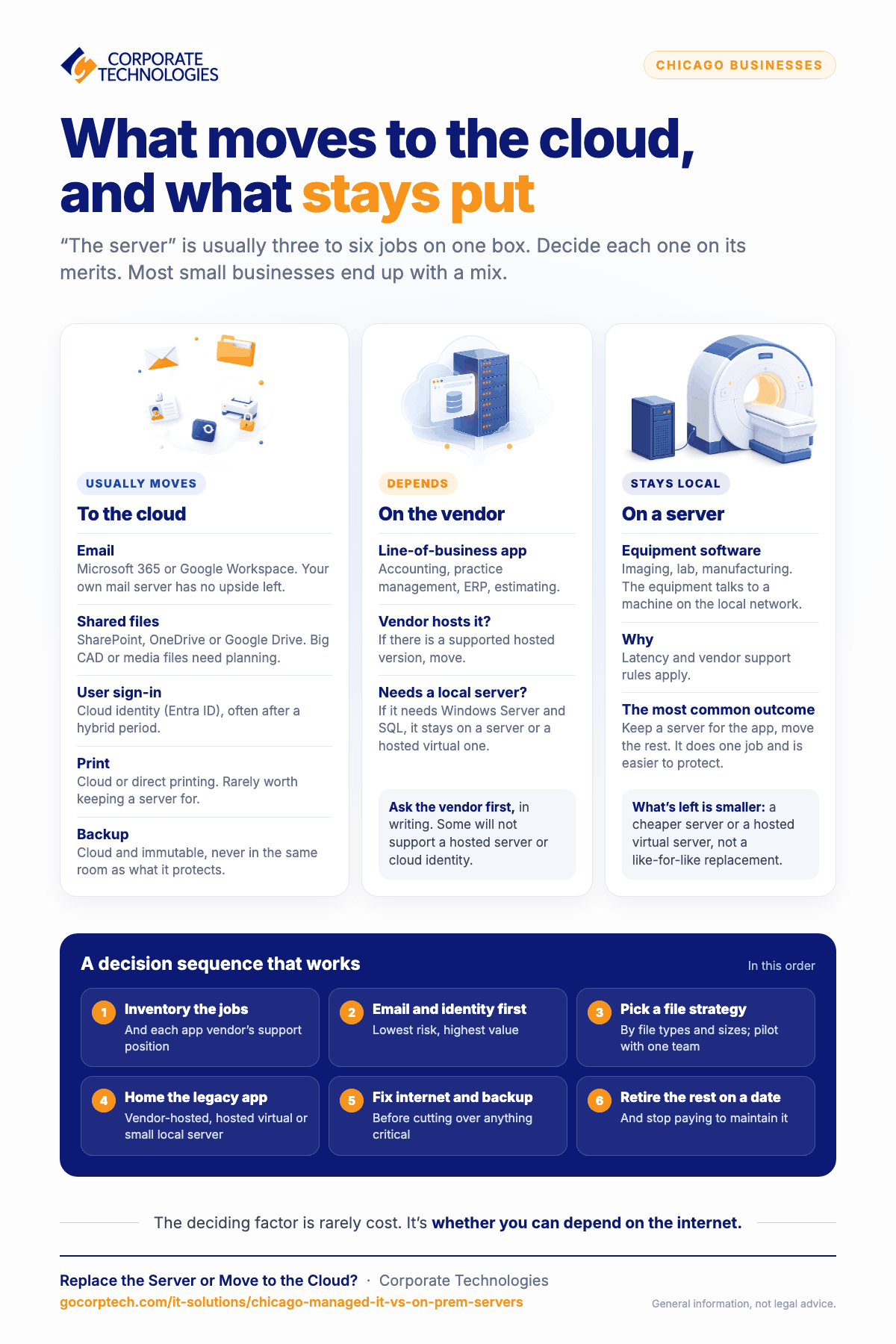
Most “the server” conversations are about three to six different jobs running on one box. Write them down:
- File storage and shared folders
- User accounts and sign-in (Active Directory)
- A line-of-business application and its database (accounting, practice management, ERP, estimating)
- Print services
- Email, if it has not already moved
- Backup target for the other things
Each of these has a different best home. Treating them as one decision is how businesses end up either paying to move something that should have stayed, or keeping a server alive for one application that would run fine elsewhere.
What usually moves, and what usually stays
| Workload | Usual answer | Why |
|---|---|---|
| Cloud (Microsoft 365 or Google Workspace) | Running your own mail server has no upside left for a business this size | |
| Shared files | Cloud (SharePoint, OneDrive, Google Drive), with care | Works well for documents; large design, CAD, or media files with many simultaneous users can be slower and need planning |
| User sign-in | Cloud identity (Entra ID), often with a hybrid period | Modern devices and apps authenticate against cloud identity; the on-premises domain controller becomes a legacy dependency |
| Line-of-business application | Depends on the vendor | If the vendor offers a supported hosted version, move. If the application needs a local Windows server and a SQL database, it stays on a server or goes to a hosted virtual server |
| Imaging, lab, manufacturing, and other equipment-connected software | Stays local | Equipment talks to a machine on the local network; latency and vendor support rules apply |
| Print services | Cloud print or direct printing | A print server is rarely worth keeping a server for |
| Backup | Cloud, immutable | Backups should not live in the same room as what they protect |
The pattern is that the server usually ends up with one or two jobs left: a legacy application and the equipment that depends on it. That is a smaller, cheaper server, or a hosted virtual server, not a like-for-like replacement of the old one. Our cloud decision framework goes deeper on the workload table.
The cost comparison people get wrong
A new server is a capital purchase of several thousand dollars that lasts five to seven years. Cloud services are a monthly fee per user that never ends. Comparing those two numbers directly misleads in both directions.
- The server’s real cost includes the Windows Server and client licenses, a backup system and its cloud copy, a UPS, warranty, the hours spent patching and maintaining it, the power and cooling, and the business risk of a single piece of hardware. Spread over five years, a modest server environment for 20 people is typically several hundred dollars a month all in.
- The cloud’s real cost includes the per-user subscriptions you may already pay for Microsoft 365, plus storage, plus any hosted virtual server for the legacy application, plus cloud backup (Microsoft and Google do not back up your data in the way most people assume), plus a better internet connection and a failover path, because the office now depends on it.
For a 20-person professional office with no equipment-connected software, the cloud is usually cheaper and clearly more resilient once the server is retired entirely. For a business with a heavy local application and modest file needs, keeping a small server and moving everything else is often the better number. For businesses in the middle, the deciding factor is rarely cost; it is whether the business can tolerate depending on an internet connection, and that is a continuity decision. See our continuity plan for Chicago outages.
The mistakes that make either choice expensive
- Moving files to the cloud without changing how people work. Mapped drives with 200,000 files synced to every laptop. Plan the folder structure and sync settings first.
- Keeping the old domain controller forever. A hybrid identity setup is a transition, not a destination. Set a date to retire it.
- Buying a server sized for the old workload. If email and files have moved, the replacement should be much smaller and may be a hosted virtual machine.
- Skipping cloud backup. Ransomware encrypts synced cloud files just as happily as local ones. Immutable backup of Microsoft 365 or Google Workspace is not optional.
- Moving before the internet is ready. One consumer-grade connection and no failover means the first outage shuts the business.
- Ignoring the vendor. Some line-of-business vendors will not support their application on a hosted server or on cloud identity. Ask before you plan, in writing.
- Treating the VMware bill as a reason to stay put. If licensing changes made your virtualization platform expensive, that is a reason to revisit the whole question, not just to pay more. See VMware and Broadcom migration costs.
A decision sequence that works
- Inventory the server’s jobs and the applications’ vendor support positions.
- Move email and identity first if they have not moved; they are the lowest-risk, highest-value steps.
- Decide the file strategy based on file types and sizes, and pilot it with one team.
- Decide the legacy application’s home: vendor-hosted, hosted virtual server, or a small local server.
- Fix connectivity and backup before cutting over anything the business depends on.
- Retire what is left on a date, and stop paying to maintain it.
How Corporate Technologies helps Chicago businesses decide
Our Chicago office runs this assessment as part of onboarding for every new client, and as a standalone project for businesses that want the decision before committing to a provider. We support both outcomes: cloud migration and cloud services, and small on-premises environments with backup and recovery. Support and monitoring are priced flat per user per month on our managed IT packages page, so the answer does not change what you pay us. If you want a quick read on where you stand, the network health check takes about three minutes.
Frequently asked questions
Is the cloud more secure than a server in our office?
The platform usually is; your use of it is only as secure as your accounts and devices. Multi-factor authentication, managed devices, and backup matter more than where the data physically sits.
What about our old software that only runs on Windows Server 2012?
It can run on a hosted virtual server or an isolated local machine, but it is unsupported and a security liability. The real question is the vendor’s roadmap, and whether a replacement application is overdue.
How long does a migration take?
Email and identity for a 20-person office in a few weeks. Files depend on volume and structure. A legacy application depends on the vendor. Plan two to four months end to end for a typical office and do it in stages.
Can we keep a server for the application and still get rid of the rest?
Yes, and that is the most common outcome. The server gets smaller, does one job, and is far easier to protect and back up.
Keep reading
More in IT Solutions →
Managed Services
How We Measure Managed IT
Real operational metrics from Corporate Technologies' managed client base: about 2.6 hours of downtime a year, critical issues resolved in 8.5 hours,…

FINRA and SEC IT Controls for Small Financial Firms in Maryland
Amended Regulation S-P (incident response, 72-hour vendor notice, 30-day customer notice), FINRA 4370, Reg S-ID, Maryland PIPA, and what examiners expect.
Managed Services
New Mexico Data Breach Law Explained for Small Businesses
The New Mexico Data Breach Notification Act: 45-day notice, the 1,000-resident AG threshold, the encryption exception, penalties, and the IT work behind…
Free, same business day
What would managed IT cost for your team?
Tell us how many computers and users you have. An engineer sends a per-user range, usually the same business day. No credit card, no bot.
- Live service specialist in about a minute, 24/7
- 21 offices across 18 states
- 60-day money-back guarantee
Get your instant IT support estimate
Tell us how many computers and users you have and we send a per-user range, usually the same business day.