

In short
Is your webcam light turning on unexpectedly? Learn how to check, secure your camera, and protect your privacy in under a minute with these simple steps.
In this article
Has this ever happened before? You’re working, maybe answering emails or just scrolling, and your coffee is right there beside you. Then suddenly, that tiny little webcam light blinks. Just once. Or maybe it stays on. You are sitting there and thinking, wait, I didn’t open anything. Why is that on? It’s a strange feeling. It is a bit uncomfortable feeling.
Webcam hijacking is real. It’s one of those things people avoid thinking about, maybe because it feels a bit too close to home. But yes, it does happen. The surprising part is that checking and fixing it is not some big technical task. It’s actually very simple. Just a few clicks. Less than a minute.
This isn’t about expecting something bad or overthinking it. It’s simply awareness. Most of our day is spent right in front of that camera. Meetings, random chats, work, boredom, everything. So doing a quick check is just giving yourself a bit of peace. Privacy stays with you.
Why Webcams Turn On Without You Knowing
There are a few reasons this happens, and they’re not always dramatic or technical. Sometimes it’s just a leftover permission from your last call. Those video apps, Zoom, Microsoft Teams, and Google Meet, can quietly keep the camera access running in the background, especially if the meeting didn’t close out fully. Even your browser can keep running quietly if you once allowed a website to use your camera.
Then there’s the less friendly side of this: malicious access. Cybercriminals sometimes use remote access tools disguised as everyday downloads or browser extensions. Once installed, these tools can activate cameras silently and stream video without the user knowing. Antivirus tools do catch a lot of this, but if you ever clicked “Allow” in a hurry just to move on with your work, sometimes that small moment is enough to bypass the protection.
It happens more than we think. The key thing is, you don’t have to be some cybersecurity professional to handle this stuff. You just need to know the places to check. It’s very much simpler than it feels.
How to Quickly See If Your Webcam Is Active
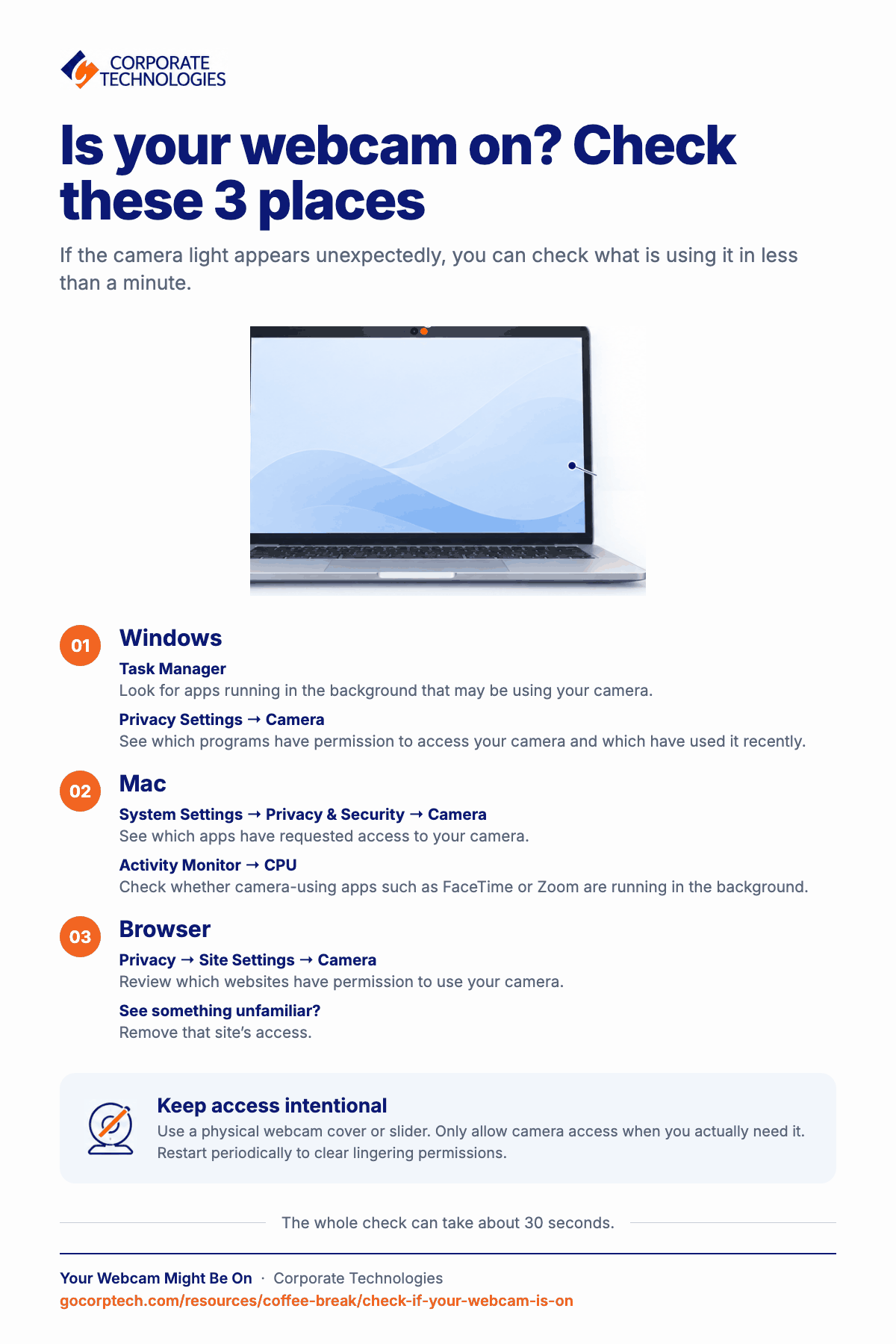
On Windows:
1) Through Task Manager:
- Open the task manager through a right click on the task bar or by pressing Ctrl + Shift + Esc buttons together.
- Click to the processes tab and go through list of apps running currently. If any application is using your camera, it will usually appear in the Processes list.
- You might see familiar names like Teams, Zoom, Chrome, Skype or others.
- If any one of them is running in the background that you didn’t expect, that’s your signal to investigate.
2) Through Windows Privacy Settings:
- Go to windows settings.
- Click the privacy settings option.
- Scroll down to the app permissions section.
- Click “Camera” in the app permissions section
- Here you will see a list of all programs that have permission to access your camera and which programs have recently used the camera.
On Mac:
1) Through System’s Preferences Check:
- Go to system settings on your macOS.
- Click on the privacy and security settings option.
- Now click “Camera” and it will give a list of all the apps which requested access or used the camera.
2) Through Activity Monitor settings:
- Type “Activity Monitor” in the spotlight search bar and press enter
- Once, activity monitor is opened, click on the CPU tab.
- The CPU tab will show every app running on your system currently.
- Look for camera using apps like FaceTime, Zoom, Photo Booth and others.
- If any one of these apps is running in the background, it means your camera is in use.
Browser Access (for Chrome, Edge, etc.)
- Go to your browser settings and then click the privacy settings option.
- Now, go to the site settings option and click “Camera” in the permissions tab.
- It will show you a list of all the websites which have permission to use to your camera.
- If any unfamiliar website has access to your camera, it will appear here.
- You can simply remove that website.
Practical, Everyday Protection Steps
While software protections matter, the simplest solutions are often the most effective. A physical webcam cover, slider, or even a small piece of tape instantly blocks unwanted access. It’s a basic move, but even major tech CEOs do this for a reason.
Pair that with reliable security protection, preferably the kind built for business environments, and you’ve already reduced most risks. And finally, make it a habit not to allow camera access unless you really need it. If a website or app asks and you don’t know why, click no first. You can always allow it later.
Restarting your computer every so often also helps. It resets any lingering permissions that might have stuck around in the background.
A Quick Reminder and a Simple Ask
This entire check takes maybe 30 seconds. Yet those 30 seconds can prevent days of worry, stress, or privacy damage. Most people never think about their webcam after the day they start using their laptop, which is exactly why this happens.
So here’s your small action for today: Check your camera once. Then share this with your team or coworkers. It’s an easy, calm, “over coffee” level step that keeps everyone more secure.
Stay safe and stay aware, and if you ever need help strengthening device security across your workplace, Corporate Technologies is here to support you.
Keep reading
More in Coffee Break Reads →
Multitasking Is Slowing You Down (And Increasing Risk)
Multitasking feels productive, but your brain is switching gears and paying for it in lost time, more mistakes and more stress. Here…

What Happens When You Click “Remind Me Later” Too Many Times
That little "Remind me later" button feels harmless. But a hundred clicks later, your devices are out of sync and the security…
Stop Searching for Files: 5 Tips That Actually Work
Save time and find files faster with 5 practical file organization tips, smarter naming habits, better search, and simple maintenance routines.
Free, same business day
What would managed IT cost for your team?
Tell us how many computers and users you have. An engineer sends a per-user range, usually the same business day. No credit card, no bot.
- Live service specialist in about a minute, 24/7
- 21 offices across 18 states
- 60-day money-back guarantee
Get your instant IT support estimate
Tell us how many computers and users you have and we send a per-user range, usually the same business day.