


In short
Find out how often to back up your business data to ensure you never lose critical information when it matters most.
In this article
If you’re wondering how often to back up your business data, you’ve probably already felt that flash of concern: What would happen if we lost everything?
The short answer is simple: Back up your data more often than you think you’ll need to. The day you need a backup is usually the day after you wish you had created one.
For most small U.S. businesses, a practical backup plan includes:
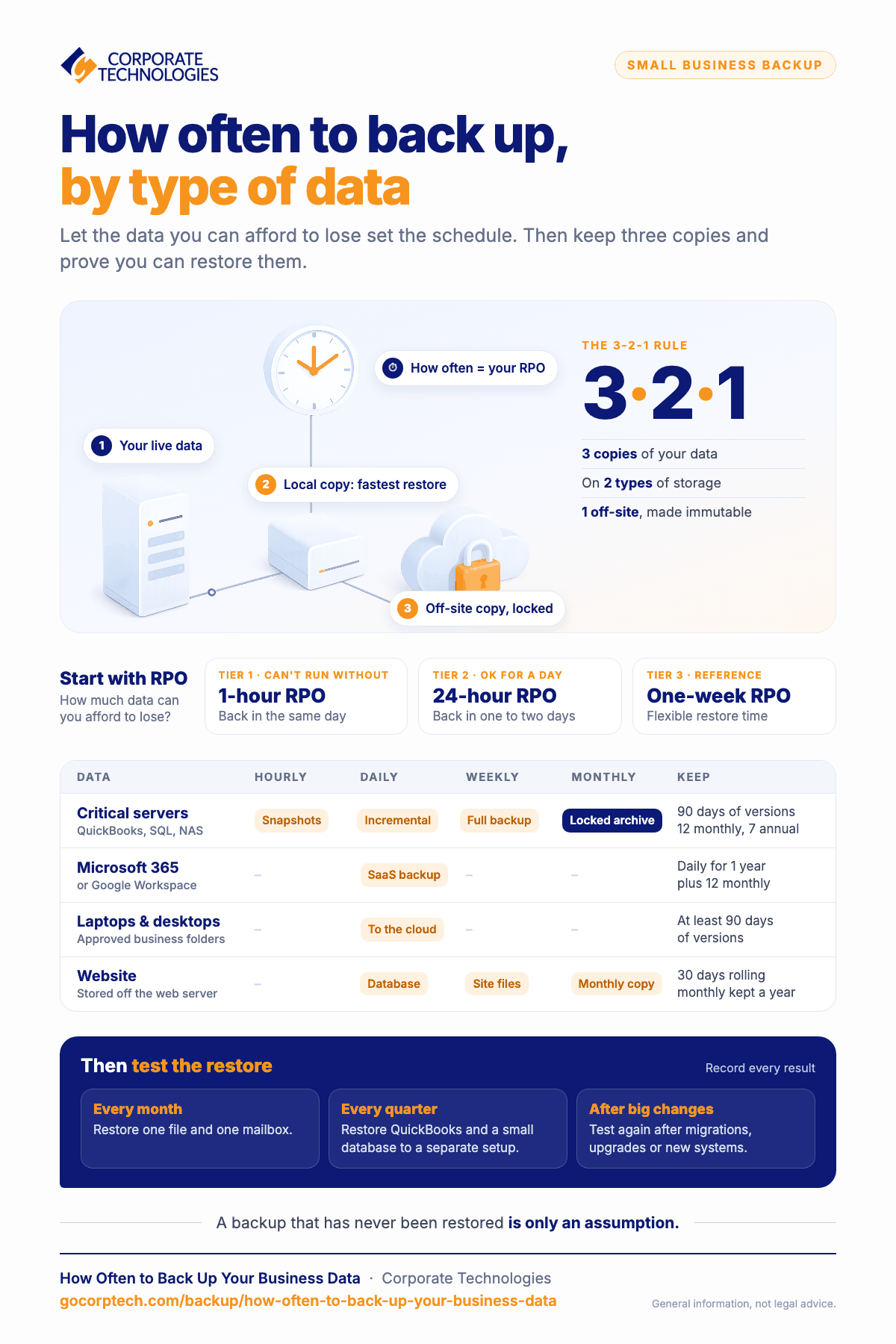
- Critical systems: Use hourly snapshots, daily incremental backups, weekly full backups, and monthly archives retained for 12–84 months, depending on regulatory requirements.
- Email and collaboration platforms: Back up Microsoft 365 or Google Workspace daily, with versioning and point-in-time recovery whenever possible. Review how to secure your Microsoft, Google, and AWS accounts while you’re at it.
- Employee devices: Back up laptops and desktops daily and retain at least 90 days of versions.
- Immutable off-site storage: Maintain at least one copy that cannot be changed or deleted, using object lock or write once, read many (WORM) storage in a separate location or cloud account.
- Test restores: Run a simple restore test every month, a broader recovery test every quarter, and another test after any major system change.
That’s the practical answer. Now let’s turn it into a backup schedule your business can actually follow.
First, Decide What “Often Enough” Means
Two measurements should determine your backup schedule: recovery point objective and recovery time objective.
Recovery Point Objective (RPO) is the maximum amount of data your business can afford to lose.
For example, if losing one hour of point-of-sale transactions would be unacceptable, your RPO should be one hour or less. That system must be backed up at least hourly.
Recovery Time Objective (RTO) is the maximum amount of time a system can remain unavailable.
If payroll must be restored within two hours, your backup process, equipment, and recovery plan must be capable of meeting that deadline.
Document an RPO and RTO for every critical system. This replaces vague instructions such as “back up regularly” with measurable recovery targets.
These two measurements are not marketing terms. They come from federal contingency planning guidance: NIST SP 800-34, the standard reference for contingency planning for information systems, is built around them.
Build Your Backup Schedule in Five Steps
1. Inventory Your Systems
List every system that stores or processes important business data, including:
- Accounting and point-of-sale systems
- Customer relationship management software
- File servers, SharePoint, OneDrive, or Google Drive
- Email and collaboration platforms
- Websites
- Business databases
- Line-of-business applications
- Employee laptops and desktops
2. Group Systems by Criticality
Classify each system according to how urgently the business needs it:
- Tier 1: The business cannot operate without it.
- Tier 2: Important, but the business can survive without it for a day.
- Tier 3: Primarily used for reference or archiving.
3. Assign an RPO and RTO to Each Tier
A reasonable starting point might be:
- Tier 1: One-hour RPO and same-day RTO
- Tier 2: 24-hour RPO and one- to two-day RTO
- Tier 3: One-week RPO with a flexible RTO
Adjust these targets to match your operational, contractual, and regulatory requirements.
4. Choose Backup Methods That Meet Your Targets
Your backup methods may include:
- Local and cloud backups for speed and resilience
- Snapshots and version history for quick rollbacks
- Image-level backups for servers
- File-level backups for employee devices
- Immutable storage for ransomware protection
Cloud synchronization alone is not a complete backup strategy. Synced deletions, corruption, or ransomware-encrypted files can spread to every connected device.
5. Establish a Retention Policy
Decide how long each type of backup should be retained. Consider:
- Operational recovery needs
- Industry regulations
- Contractual obligations
- Cyber insurance requirements
- Storage costs
- Data privacy and deletion policies
Avoid keeping every backup forever. Excessive retention increases storage costs and may create unnecessary security and compliance risks.
Example Backup Schedule for a Small Business
Consider a 25-employee company that uses QuickBooks, Microsoft 365, a cloud-based CRM, a small SQL inventory database, and an on-premises network-attached storage device.
Servers and Databases
For QuickBooks, SQL databases, and NAS file shares:
- Run incremental backups every night.
- Run a full backup every week.
- Store weekly full backups both locally and in the cloud.
- Create a monthly cloud archive protected by object lock.
- Retain 90 days of versions, 12 monthly backups, and seven annual backups when appropriate.
Microsoft 365
For Exchange, SharePoint, OneDrive, and Teams:
- Run a third-party SaaS backup daily.
- Enable item-level recovery for emails, files, folders, and sites.
- Retain daily versions for one year and keep 12 monthly archives when appropriate.
Employee Laptops and Desktops
- Back up important files to the cloud daily.
- Include approved business folders such as Desktop, Documents, and Pictures.
- Exclude temporary files and downloads when appropriate.
- Retain at least 90 days of versions.
Website and WordPress
- Back up the database every night.
- Back up website files every week.
- Store backups away from the production web server.
- Retain 30 days of rolling backups and one monthly backup for a year.
Immutable Backup Copy
- Protect weekly full backups and monthly archives with WORM storage or object lock.
- Use separate credentials for backup storage.
- Do not give everyday administrator accounts permanent access to immutable backups. Reviewing your network access and permissions is a good companion step here.
Recovery Testing
- Monthly: Restore one file and one mailbox.
- Quarterly: Restore QuickBooks and a small SQL database to a separate environment.
- After major changes: Test recovery following migrations, upgrades, or infrastructure changes.
- Record the results of every recovery test.
This type of schedule covers many small-business scenarios without creating unnecessary cost or complexity.
Local Backups vs. Cloud Backups
Local backups usually provide the fastest recovery. They are useful when someone accidentally deletes a folder or a local device fails.
Cloud or off-site backups protect the business when the local environment is affected by fire, theft, hardware failure, ransomware, or another site-wide incident.
A reliable strategy uses both.
Follow the 3-2-1 Backup Rule
Keep:
- 3 copies of your data
- On 2 different types of storage
- With at least 1 copy stored off-site
For stronger ransomware protection, make the off-site copy immutable or otherwise isolated from your production network. Our guide on whether your disaster recovery plan meets the 3-2-1 standard walks through this in more depth.
Don’t Forget Your SaaS Data
Microsoft 365 and Google Workspace offer dependable cloud platforms, but their availability and retention features are not substitutes for an independent backup.
Users can accidentally delete data. Malicious inbox rules can remove email. Ransomware can encrypt synchronized files. Retention settings can also be changed or misconfigured.
A separate SaaS backup provides point-in-time recovery beyond the limitations of recycle bins and native retention policies.
Common Backup Mistakes and How to Fix Them
Keeping Backups in One Location
A single USB drive or local NAS is not a complete backup strategy.
Fix: Add a protected cloud or off-site copy.
Allowing Ransomware to Reach Backups
If production administrator accounts can modify or delete every backup, ransomware or a compromised account may destroy your recovery options.
Fix: Use immutable storage, isolated credentials, and restricted administrative access. Our comprehensive guide to preventing ransomware attacks covers this in detail.
Never Testing Recovery
A backup that has never been restored is only an assumption.
Fix: Schedule monthly and quarterly restore tests and document the results.
Treating File Synchronization as Backup
OneDrive and Google Drive synchronize changes, including accidental deletions, corrupted files, and ransomware encryption.
Fix: Use a separate backup platform with independent version history and point-in-time recovery.
Relying on One Administrator Account
A single privileged account creates a single point of failure.
Fix: Maintain a secured emergency administrator account, protect it with multi-factor authentication, and store its recovery information safely.
Forgetting Employee Devices
Laptops can be lost, damaged, stolen, or infected.
Fix: Back up approved business folders from employee devices every day.
Having No Retention Policy
Keeping everything forever is costly and can create unnecessary risk.
Fix: Define how long each backup category should be retained based on business, legal, regulatory, and security requirements.
Make Immutability a Priority
Immutability is one of the most underused protections available to small businesses.
Local daily backups are valuable, but they may not help if ransomware can encrypt both production data and the connected backup repository. Enabling object lock or WORM protection for weekly and monthly backups prevents those recovery copies from being changed or deleted during their retention period.
If your business makes only one backup improvement this quarter, create an immutable copy and perform a test restore to prove that it works.
This is not a niche recommendation. CISA’s ransomware guidance treats maintaining offline, encrypted, immutable backups and testing restores as a baseline control rather than an advanced one.
Frequently Asked Questions
How Often Should a Small Business Back Up Its Data?
Backup frequency should be based on how much data the business can afford to lose. Critical systems may require hourly backups, while less critical systems may only require daily or weekly backups.
A common baseline is daily incremental backups, weekly full backups, and monthly archives. Your RPO, RTO, regulations, and operational needs should determine the final schedule.
Do We Need to Back Up Microsoft 365 or Google Workspace?
Yes. Native recycle bins, version history, and retention policies do not provide the same protection as an independent backup.
A third-party backup can provide point-in-time recovery after accidental deletion, malicious inbox rules, account compromise, or ransomware affecting synchronized files.
What Is the Minimum Off-Site Backup Setup?
Maintain at least one backup outside your physical location and production environment. A cloud backup stored in a separate account with restricted credentials is a practical starting point.
For stronger protection, make that copy immutable.
How Long Should We Retain Backups?
Retention depends on business requirements and industry regulations. One possible baseline is to retain daily versions for 90 days, 12 monthly backups, and seven annual backups.
Confirm the appropriate schedule with your legal, compliance, insurance, and IT advisers.
How Often Should We Test Restores?
Run a simple recovery test every month, such as restoring one file or mailbox. Perform a broader recovery test every quarter by restoring an important application or database to a separate environment.
Test again after significant changes, including migrations and major upgrades.
Will Backups Slow Down Our Network?
They can if large backups run during peak business hours.
Use incremental backups, deduplication, bandwidth limits, and overnight scheduling to reduce network impact.
Is a NAS Enough for Backup?
A NAS can provide fast local recovery, but it should not be your only backup.
Add an off-site or cloud copy, enable snapshots, restrict administrative access, and avoid exposing the NAS directly to the internet.
What About Company Data on Phones?
Keep company data inside approved applications managed through mobile device management. Back up the underlying Microsoft 365, Google Workspace, or other business platform rather than mixing company data with personal device backups.
Avoid storing sensitive company data in unmanaged applications or on unmanaged devices.
How Do We Protect Backups From Ransomware?
Use immutable storage, separate backup credentials, multi-factor authentication, restricted administrator access, and offline or otherwise isolated recovery copies.
Test a ransomware recovery scenario every quarter. Learn more about protecting your backup server.
Do We Have to Report a Ransomware Attack?
Reporting obligations depend on your sector, your state, and your contracts, and some are measured in hours rather than days. Regardless of obligation, CISA and the FBI Internet Crime Complaint Center both accept reports from businesses of any size, and prompt reporting can materially improve the chance of recovering fraudulent payments.
Keep reading
More in Backup →
Security
How To Protect Your Backup Server
Don't risk critical data loss. Learn how to protect your backup server and ensure operational resilience with an effective backup strategy.

How to Backup Your Business Data
Safeguard your business against data loss with advanced backup strategies. Discover the essentials of data backup, its importance, and how to create…
Free, same business day
What would managed IT cost for your team?
Tell us how many computers and users you have. An engineer sends a per-user range, usually the same business day. No credit card, no bot.
- Live service specialist in about a minute, 24/7
- 21 offices across 18 states
- 60-day money-back guarantee
Get your instant IT support estimate
Tell us how many computers and users you have and we send a per-user range, usually the same business day.