
How to Secure Your Cloud Accounts (Best Practices for AWS, Google Workspace, and Microsoft 365)


In short
Learn best practices to secure AWS, Google Workspace, and Microsoft 365 accounts. Protect data, prevent breaches, and stay compliant with HIPAA & PCI.
In this article
Cloud services can unlock new efficiencies for small businesses, but they also introduce new security risks if left unchecked. Think of your cloud account like the front door to your digital workplace: strong locks (and no hidden spare keys) keep intruders out. In practical terms, that means setting up multi-factor authentication (MFA) everywhere, enforcing unique strong passwords, and applying the principle of least privilege so people only see what they need. These steps are not only common-sense IT best practices, they help you meet compliance standards. For example, HIPAA requires strict safeguards around patient records[1], and PCI-DSS demands tight controls on credit-card data[2]. By following the tips below – think of them as a seasoned consultant’s security checklist, you’ll protect your AWS, Google Workspace, and Microsoft 365 accounts from common threats (like phishing and account takeover) and avoid costly mistakes.
Securing AWS Accounts
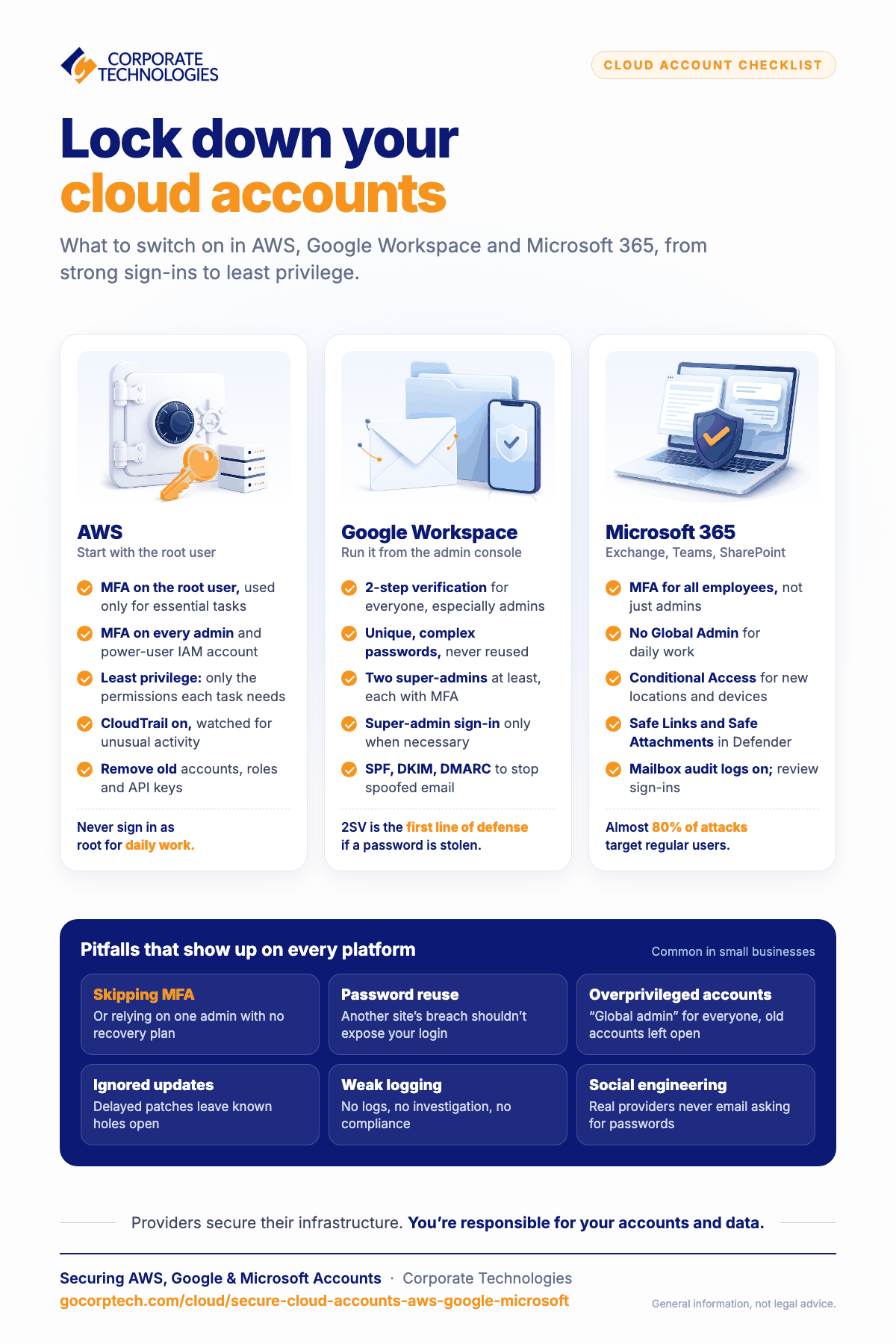
In AWS, start by protecting the root user – this is the all-powerful account created when you first sign up. Configure MFA on that root user immediately, and never use the root account for daily tasks[3]. Instead, create individual IAM users or roles for administrators and developers. Use IAM roles with temporary credentials (for example, EC2 or Lambda roles) rather than hard-coded keys when possible. As AWS recommends, “grant only the specific permissions required”. In other words, apply least-privilege permissions[4]. That means if a user only needs to read S3 buckets, don’t give them blanket admin rights. Regularly audit and remove any old or unused IAM accounts, roles, and API keys (AWS exposes “last accessed” info to help you trim away unnecessary permissions[5]).
- Protect the root account: Enable MFA on the root user and use it only for essential tasks[3]. Store your root credentials safely (ideally offline) and sign in with a less-privileged admin account for day-to-day work.
- Enforce strong authentication: Require MFA on all administrator or power-user IAM accounts[3]. This simple step blocks almost all automated attacks, even if a password is compromised.
- Use least-privilege policies: Set IAM policies so that users and services only have permissions for their specific tasks[4]. For instance, don’t give your marketing person S3 delete permissions if they just need to upload files. Over time, refine policies to narrow privileges.
- Enable logging and monitoring: Turn on AWS CloudTrail (which logs every API call) and send logs to a central account or SIEM. Monitor for unusual activity (large data transfers, login attempts from new locations, etc.). A third-party SIEM or AWS services like GuardDuty can alert you to threats in real-time.
Finally, remember compliance rules: AWS lets you encrypt data at rest and in transit to meet HIPAA and PCI requirements. For example, PCI-DSS guidelines specifically call for strong authentication and access controls (such as MFA and role-based access)[6]. Make sure any handling of credit card info lives in its own secure VPC/network segment, with encryption (e.g. EBS encryption, RDS encryption, TLS) enabled[7]. Similarly, if you handle Protected Health Information (PHI), AWS provides a HIPAA Business Associate Addendum, and you should enable detailed audit logging and data encryption on all PHI‐related resources (HIPAA’s security rule is about safeguarding data and audit trails[1]).
Securing Google Workspace Accounts
For Google Workspace (Gmail, Drive, etc.), the admin console is your control center. Start by enforcing strong credentials: each user should have a unique, complex password[8] and 2-step verification (2SV/MFA) enabled. Google’s own guide notes that 2SV (adding something you have, like a phone or hardware key) is vital for admins and anyone handling sensitive data[9]. In practice, require all administrators and “key users” (anyone with access to financial or HR data) to use MFA.
- Unique passwords and MFA: Don’t let people recycle passwords (e.g. the same one they use for banking). Use a password manager if needed, and require 2SV for everyone, especially admins[8][9]. Google’s admin help says 2SV is “the first line of defense” if a password is stolen[9].
- Set up backup admin accounts: Always have at least two super-administrators in your domain[10], each with their own login and MFA. If the primary admin gets locked out, the backup can quickly restore access. Also configure recovery options (a recovery phone or secondary email) for each admin account[11][12], and print out Google’s backup codes to keep offline.
- Admin best practices: Only sign in as a super-admin when necessary. Google warns that staying signed in to an admin account makes it easier for attackers to abuse it[13]. For routine management, assign less-privileged admin roles (e.g. Groups Admin, User Management Admin) rather than using a super-admin account.
- Leverage Google’s security tools: Turn on the security center’s features: Gmail’s advanced phishing and malware filtering, strict attachment scanning, and login alerts. Configure SPF/DKIM/DMARC records to stop spoofed emails. Google can quarantine or label suspicious messages automatically, which greatly reduces phishing hits.
- Keep devices and apps updated: Ensure users’ browsers, operating systems, and apps (especially Chrome) are set to auto-update so known vulnerabilities get patched. Outdated software is an easy door in for malware or account theft.
A quick example: imagine a small clinic using Google Workspace for patient emails. To comply with HIPAA, they’d enable the Google Workspace BAA (Business Associate Agreement) and make sure only doctors can view certain Drive folders. They’d rely on Google’s audit logs and MFA to guard PHI[1]. Likewise, a retail business accepting card payments should use Google’s data loss prevention (DLP) rules on Drive to prevent card numbers from being stored in plaintext, and enforce MFA on finance-team logins in line with PCI-DSS’s “strong authentication” requirements[6].
Securing Microsoft 365 Accounts
Microsoft 365 (Office 365) ties together Exchange Online, Teams, SharePoint, etc. The security playbook here is similar: enforce MFA on all accounts, especially on global administrators. As one security guide puts it, MFA in M365 is a “crucial cloud security guardrail” – it stops attackers dead even if they get a password[14]. Alongside MFA, apply least privilege in Azure Active Directory: give users the minimum roles they need. Don’t use the “Global Admin” account for daily work; instead, create specialized roles (like “Security Admin” or “SharePoint Admin”) and elevate privileges only when necessary.
- Enable MFA and strong passwords: Turn on Azure AD multi-factor authentication. Require it not just for admins, but for all employees if possible – almost 80% of attacks target regular users, so protecting them helps too[14]. Also implement a solid password policy (minimum length and complexity)[15]. Consider Azure AD Password Protection to block common weak passwords.
- Use conditional access: If you have Azure AD Premium, set up Conditional Access policies. For example, require MFA when a login is from a new location or device, or block legacy authentication altogether. This adds friction for attackers.
- Monitor and report: Use Microsoft Defender and the Security & Compliance center. Defender’s anti-phishing features (ATP) scan incoming mail and can quarantine malicious emails before they reach users. Enable Safe Links and Safe Attachments so that even if a user clicks a link or opens a file, Defender vets it first. These tools use machine learning to catch suspicious content[16][17].
- Train employees on phishing: According to security best practices, “employee training is the first line of defense against phishing attacks”[18]. Run regular awareness sessions or tests so staff recognize phishing emails. Teach them not to click unknown links or enter credentials unless a site is verified. (Even simple tips like inspecting a sender’s email domain can block an attack.)
- Audit and log: Keep mailbox audit logging on. Regularly review sign-in reports in Azure AD for any unusual sign-in failures or atypical locations. Maintain an incident response plan (e.g. how to immediately disable accounts if a breach is suspected).
In summary, Microsoft’s built-in features – Exchange Online Protection, Microsoft Defender for Office 365, Purview compliance tools, and Azure AD – are powerful. Make full use of them. For instance, customer data containing PHI can be tagged with sensitivity labels and encrypted in SharePoint/Exchange to meet HIPAA privacy rules. Likewise, enable strict Outlook/mobile device access rules so that if a company phone is lost, it can be wiped remotely. All of these guardrails, much like the AWS guardrails, are there to enforce the “least privilege, assume breach” mindset.
Common Pitfalls to Avoid
Across all platforms, some mistakes keep showing up in small businesses:
- Skipping MFA or Recovery Plans: Failing to turn on MFA everywhere, or having only one admin account, is a recipe for disaster. If that lone admin’s credentials are stolen (via phishing or reuse), you can be locked out entirely. Always have backup admins and recovery options.[10]
- Password Reuse: Don’t let users recycle corporate passwords on personal sites. A breach of another service should not expose your Google or Microsoft login.[8]
- Overprivileged Accounts: Granting “global admin” rights to everyone or leaving old cloud accounts dangling invites abuse. Regularly audit user roles and remove privileges that aren’t needed[5][19].
- Ignored Updates: Delaying OS or application updates on servers, laptops, or user browsers leaves known holes open. Configure auto-updates to keep security patches timely.[20]
- Weak Logging: Turning off audit logs (to save space or cost) can blind you. Without logs, you can’t investigate breaches or meet compliance. On each platform, make sure login and configuration changes are logged and periodically reviewed. (For PCI-DSS, monitoring with a SIEM is even a requirement[21].)
- Social Engineering: Even the best tech defenses fail if users give away passwords or codes. Practice saying “I’ll verify this from my side” when asked to enter credentials via email. Remember that real providers never randomly send you emails asking for passwords – phishing emails often mimic branding to trick you[22]. Treat any unexpected password prompt with skepticism.
By avoiding these mistakes and sticking to the practices above, you’ll significantly reduce your attack surface. Remember: cloud providers secure their infrastructure, but you are responsible for your accounts and data. A friendly consultant’s advice is to stay vigilant, review your security settings regularly, and keep learning, the landscape changes, but the basics (strong auth, least privilege, monitoring, and user training) never go out of style.
Sources: Authoritative cloud and security guides provide the basis for these recommendations[8][14][3][2]. Each reference above is cited at point-of-use.
[1] HIPAA – Compliance | Google Cloud
https://cloud.google.com/security/compliance/hipaa-compliance
[2] [6] [7] [21] 5 Best Practices for PCI DSS Compliance in the Cloud | CSA
[3] [4] [5] AWS Identity and Access Management (IAM) Best Practices – Amazon Web Services
https://aws.amazon.com/iam/resources/best-practices
[8] [9] [10] [11] [12] [13] [20] Security checklist for small businesses (1-100 users) – Google Workspace Admin Help
https://support.google.com/a/answer/9211704?hl=en
[14] [15] [16] [17] [18] [19] [22] Guide: 21 Microsoft 365 Security Best Practices
https://sharegate.com/blog/21-microsoft-365-security-best-practices-a-practical-guide
Keep reading
More in Cloud Computing →
How to Migrate to the Cloud Without Disrupting Operations
Learn how to migrate to the cloud without disrupting operations. Discover step-by-step strategies to reduce downtime, prevent data loss, and ensure a…
What is a Virtual Data Center?
Uncover what a virtual data center is with our comprehensive guide. Simplified explanations for everyday understanding await.

Free Cloud Computing Services
Is cloud computing really free? Learn the pros, limitations, and best options for businesses considering cloud solutions.
Free, same business day
What would managed IT cost for your team?
Tell us how many computers and users you have. An engineer sends a per-user range, usually the same business day. No credit card, no bot.
- Live service specialist in about a minute, 24/7
- 21 offices across 18 states
- 60-day money-back guarantee
Get your instant IT support estimate
Tell us how many computers and users you have and we send a per-user range, usually the same business day.